Your WhatsApp, Telegram and SMS conversations, on the HubSpot contact
Connect your Timelines inbox to HubSpot and every message, call and attachment is logged on the matching contact within seconds. Your team sees the whole relationship in the CRM without copying anything by hand.
What the integration does
Timelines finds the HubSpot contact whose phone number matches the chat and logs each conversation on it, with the time it really happened.
Messages
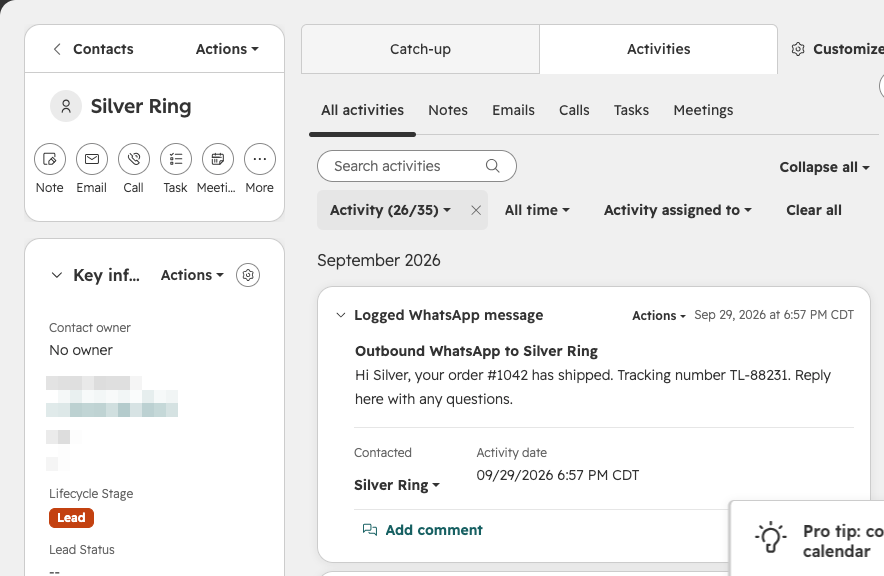
WhatsApp and SMS messages become HubSpot WhatsApp and SMS communications, in both directions. Telegram and web chat messages are logged as notes, or as messages if you prefer.
Calls
WhatsApp, Telegram and phone calls become HubSpot calls with the direction, whether the call was answered or missed, and its duration.
Contacts and attachments
Photos, documents and voice notes are attached to the logged activity. A new phone number can create a HubSpot contact automatically, or you can log only to contacts you already have.
HubSpot integration setup guide
Watch the walkthrough (connect, sync, disconnect, about two minutes, with narration):
This guide covers everything from installing the integration to removing it:
- Before you start
- Install and connect
- Permissions and why they are needed
- Choose what gets logged
- Using the integration
- Disconnect from Timelines
- Uninstall from HubSpot
- What happens to your data
Before you start
- A Timelines workspace. You need to be an owner or admin who can manage integrations.
- A HubSpot account on any plan, including the free CRM. The HubSpot user who connects must be allowed to install apps (a super admin, or a user with App Marketplace access).
- At least one connected channel in Timelines, such as a WhatsApp number, a Telegram account or a phone number.
Connecting HubSpot uses one Integration, $4.99 per month for your whole team. Your 7-day free trial includes one Integration.
Install and connect
- In Timelines, open your workspace and go to Integrations.
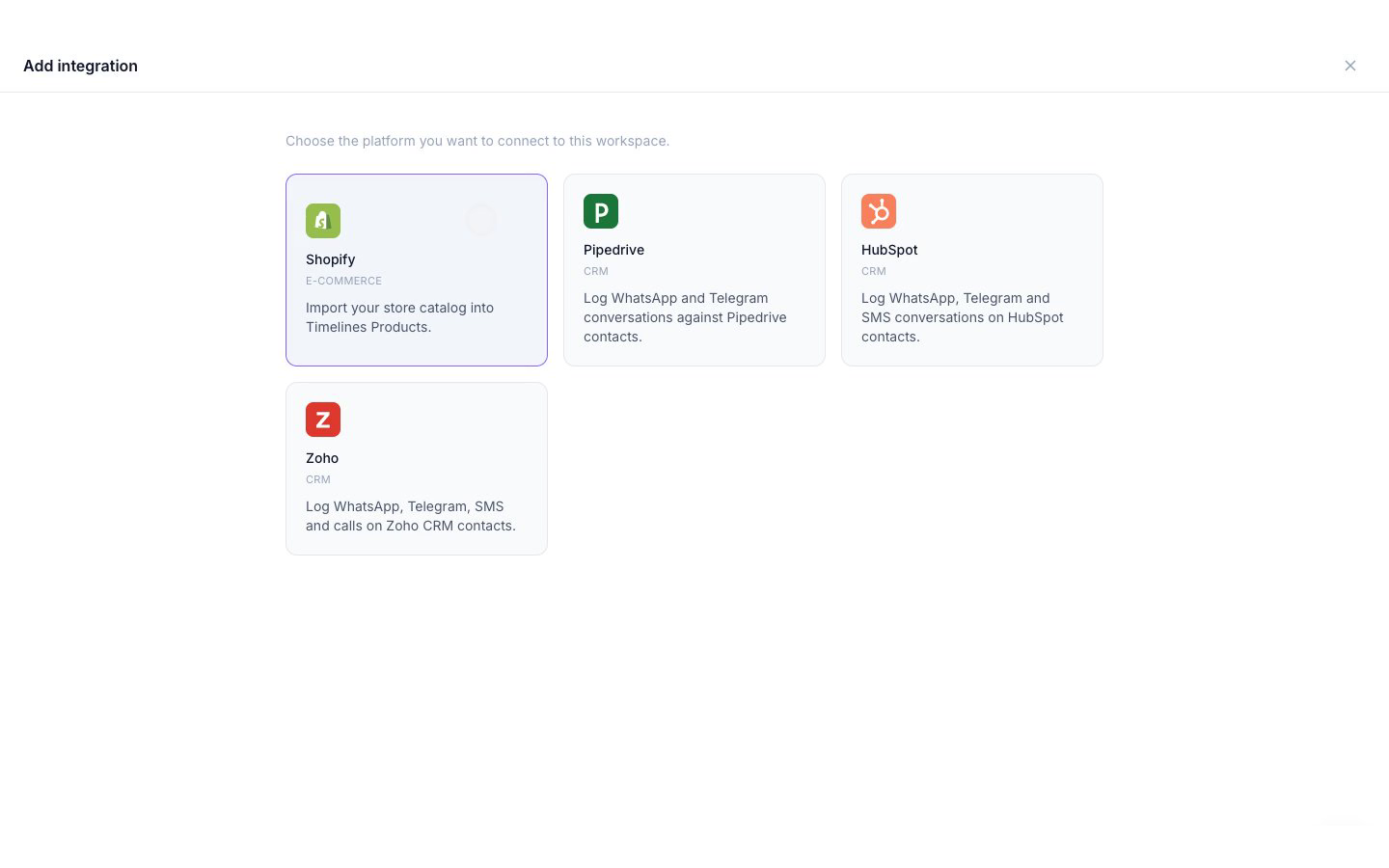
- Click Add integration and choose HubSpot.
- Click Continue to HubSpot.
- Sign in to HubSpot if asked, and choose the HubSpot account you want to connect.
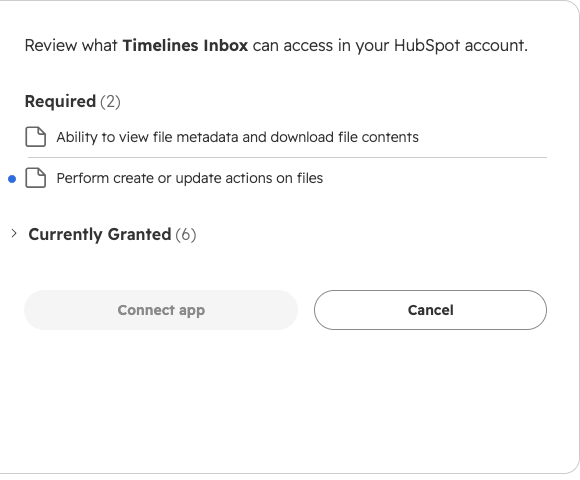
- Review the permissions on the HubSpot screen and approve them. They are explained in the next section.
- HubSpot sends you back to Timelines, where HubSpot now shows as connected. New conversations start appearing on your contacts right away.
Permissions and why they are needed
Timelines asks only for what the integration uses. It does not ask for companies, deals, tickets or marketing data.
| Permission | Why Timelines needs it |
|---|---|
| Contacts: read and write | Find the contact whose phone number matches a chat, create a contact for a new number when you allow it, and log messages, notes and calls on that contact. |
| Contact schema: read and write | Create the custom properties Timelines relies on: “Timelines phone (E.164)” on contacts, so a number is never added twice, and “Timelines message id” on communications, notes and calls, so the same message is never logged twice. |
| Files: read and write | Upload photos, documents and voice notes from your chats and attach them to the logged activity. |
| Owners: read | See which contacts have an owner, so that when several contacts share a number the owned one is chosen first. |
Choose what gets logged
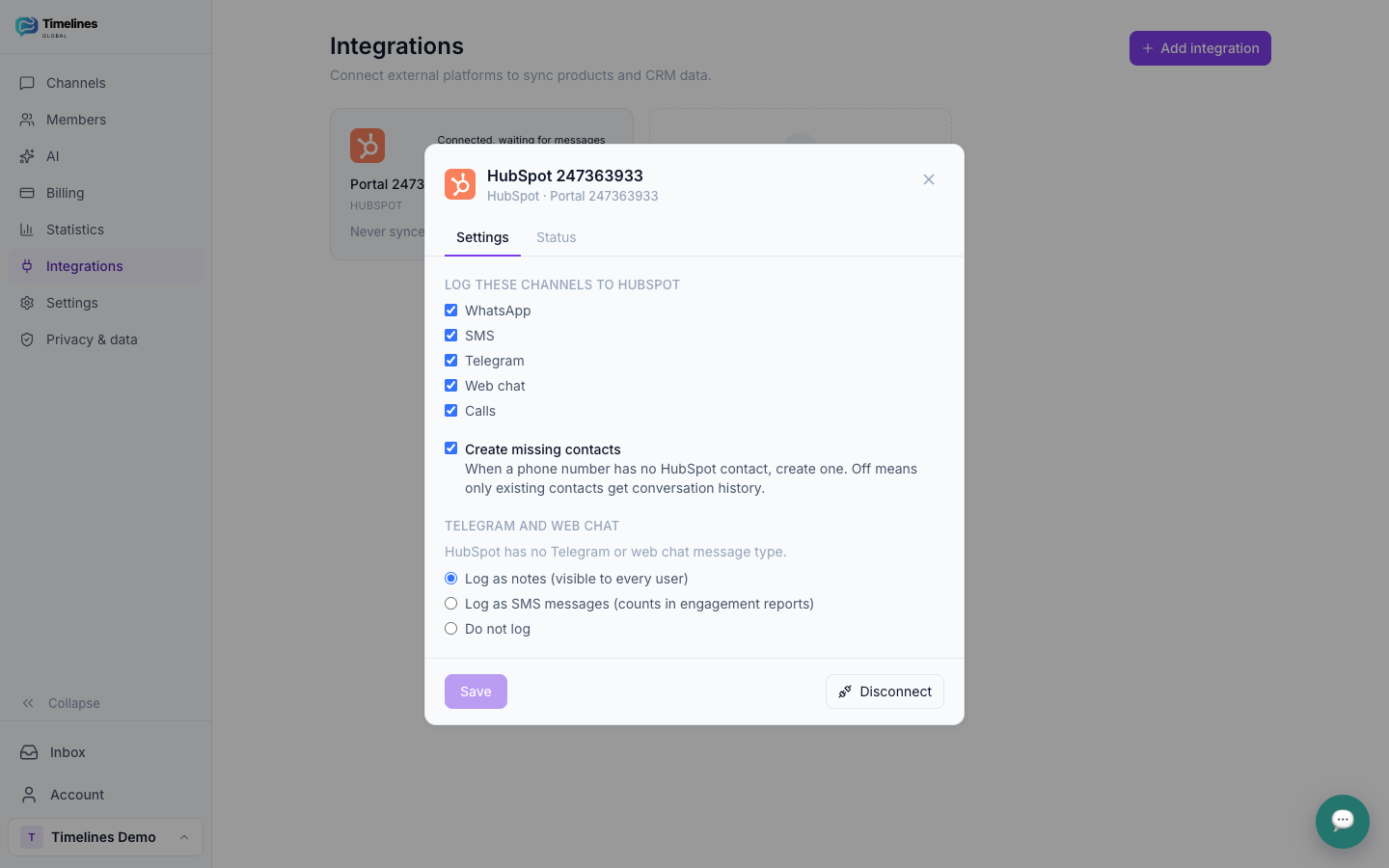
After connecting, open Integrations → HubSpot in Timelines to change these settings at any time. Changes apply to new messages.
- Channels to log. Choose any of WhatsApp, SMS, Telegram, web chat and calls. All are on by default.
- Create contacts for new numbers. On by default. When a phone number has no HubSpot contact, Timelines creates one. Turn it off to log only to contacts you already have.
- Telegram and web chat. HubSpot has no Telegram or web chat message type, so these are logged as notes by default. You can log them as messages instead, so they count in engagement reports, or not log them at all.
Using the integration
There is nothing to do day to day. Keep working in the Timelines inbox and each message reaches HubSpot within seconds:
- WhatsApp and SMS messages appear on the contact as Communications.
- Telegram and web chat messages appear as notes, unless you chose to log them as messages.
- Calls appear as Calls, with direction, status and duration.
- Attachments are added to the activity they came with.
On a HubSpot contact, the Activities tab hides WhatsApp and SMS by default. Tick them once under Filter by activity type to see them in the timeline.
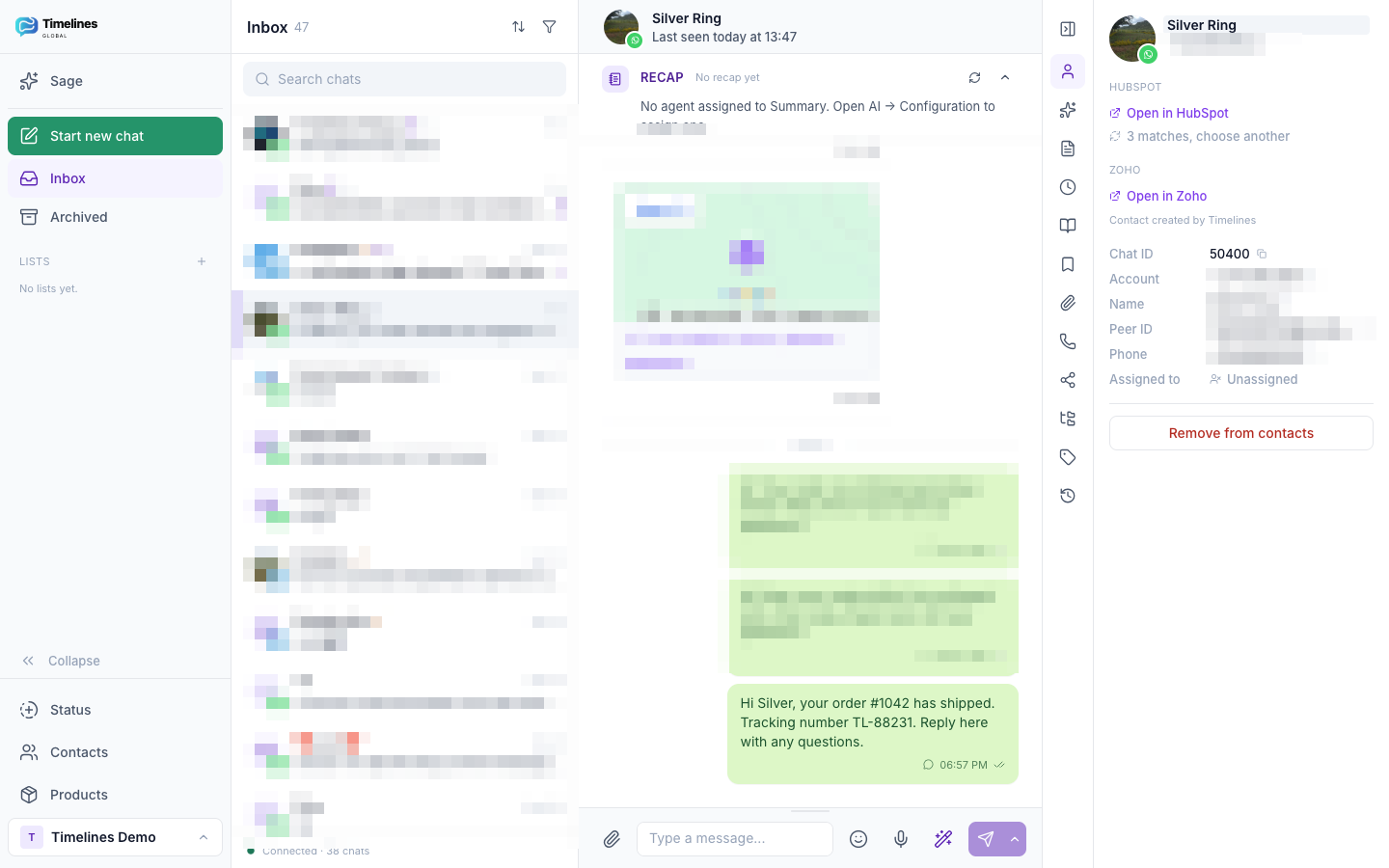
In the Timelines inbox, the chat panel shows the linked HubSpot contact with an Open in HubSpot link. Contacts are matched by phone number in any format. When several contacts share a number, Timelines logs to the best match (an exact number first, then a contact with an owner) and lets you choose another one. Chats without a phone number, such as most Telegram chats, can be linked to a contact by pasting its HubSpot contact ID.
Disconnect from Timelines
- In Timelines, open Integrations.
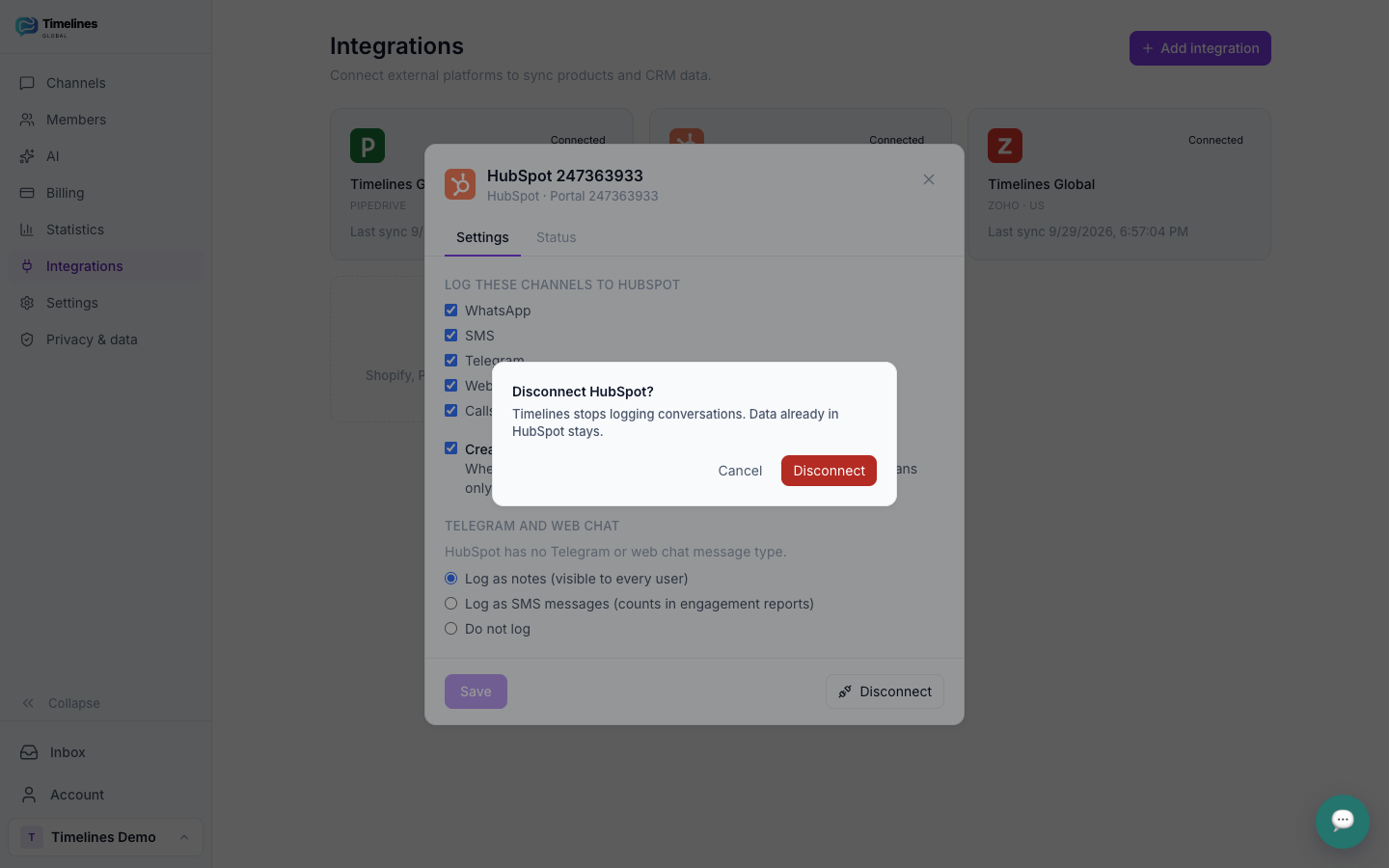
- Click the disconnect icon on the HubSpot card and confirm.
Timelines stops logging immediately and deletes the HubSpot access tokens it stored. You can connect again at any time; your settings are kept.
Uninstall from HubSpot
You can also remove the app from the HubSpot side:
- In HubSpot, open Settings → Integrations → Connected apps.
- Find the Timelines app, open Actions and choose Uninstall.
HubSpot then revokes Timelines’ access. Timelines stops syncing, marks HubSpot as disconnected in your workspace and deletes its stored tokens. To use the integration again, connect it from Timelines as described above.
What happens to your data
- While connected, Timelines reads contacts to match phone numbers and writes the communications, notes, calls, files and contacts described above. Access tokens are stored encrypted.
- After you disconnect or uninstall, nothing already logged is deleted from HubSpot. Messages, notes, calls, files, the contacts Timelines created and the Timelines custom properties stay in your HubSpot account, and you can remove them there if you want.
- In Timelines, the stored HubSpot tokens are deleted. Your conversations stay in your Timelines inbox as before.
Read more in our privacy policy and on the security and compliance page. Questions? Contact us.
$4.99 per Integration per month
Connecting HubSpot uses one Integration, $4.99 per month for your whole team, billed monthly by Timelines on its own Integration subscription. Your 7-day free trial includes one Integration. Channels are billed separately at $9.99 per channel slot per month, with unlimited team members and every AI feature included.
See pricing →Related: WhatsApp CRM and Telegram CRM.
HubSpot integration FAQ
Which HubSpot plan do I need?
Any plan, including the free HubSpot CRM. Messages, notes and calls are standard HubSpot activities.
How are contacts matched?
By phone number, across HubSpot's phone, mobile phone and WhatsApp number fields, in any format. If several contacts share a number, the inbox shows the matches so your team can choose.
Does it import old conversations?
Logging starts from the moment you connect. Earlier conversations stay in your Timelines inbox.
Does the integration cost extra?
Yes. It uses one Integration, $4.99 per month for your whole team, and your 7-day free trial includes one. Channels are billed separately, as on our pricing page.
Put every conversation in your CRM
Connect WhatsApp, Telegram and SMS to Timelines, link HubSpot in a minute, and let the history write itself. Start free this week.
Get Started Free