Dine WhatsApp-, Telegram- og SMS-samtaler på HubSpot-kontakten
Forbind din Timelines-indbakke til HubSpot, og hver besked, opkald og vedhæftning logges på den matchende kontakt inden for sekunder. Dit team ser hele forholdet i CRM uden at kopiere noget manuelt.
Hvad integrationen gør
Timelines finder den HubSpot-kontakt, hvis telefonnummer matcher chatten, og logger hver samtale på den med det tidspunkt, det virkelig skete.
Beskeder
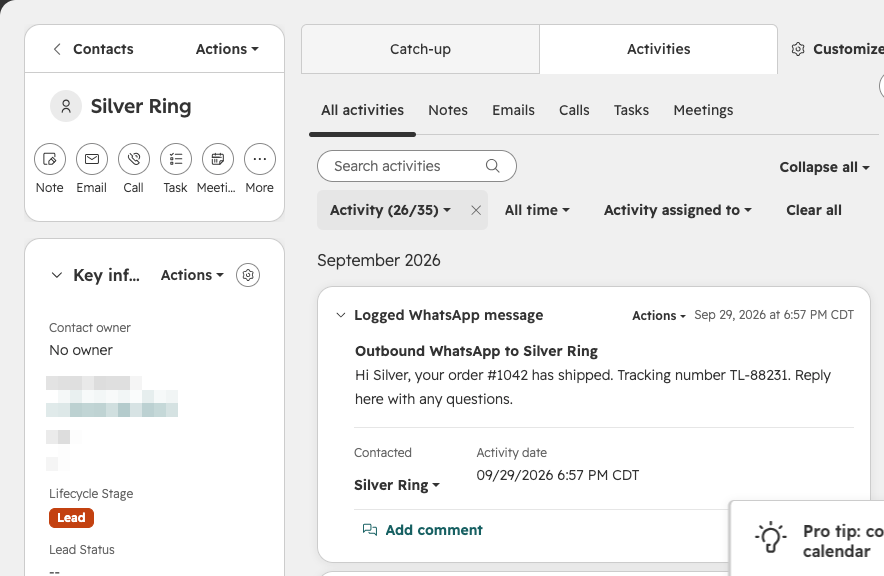
WhatsApp- og SMS-beskeder bliver til HubSpot WhatsApp- og SMS-kommunikation i begge retninger. Telegram- og webchat-beskeder logges som noter eller som beskeder, hvis du foretrækker det.
Opkald
WhatsApp-, Telegram- og telefonopkald bliver til HubSpot-opkald med retning, om opkaldet blev besvaret eller mistet, og dets varighed.
Kontakter og vedhæftninger
Fotos, dokumenter og talebeskeder vedhæftes til den loggede aktivitet. Et nyt telefonnummer kan automatisk oprette en HubSpot-kontakt, eller du kan logge kun til kontakter, du allerede har.
HubSpot-integrationsinstallationsguide
Se gennemgangen (forbind, synkroniser, afbryd, cirka to minutter, med fortælling):
Denne guide dækker alt fra installation af integrationen til fjernelse af den:
- Før du starter
- Installer og forbind
- Tilladelser og hvorfor de er nødvendige
- Vælg hvad der logges
- Brug af integrationen
- Afbryd fra Timelines
- Afinstaller fra HubSpot
- Hvad der sker med dine data
Før du starter
- Et Timelines-arbejdsområde. Du skal være ejer eller administrator, der kan administrere integrationer.
- En HubSpot-konto på enhver plan, inklusive den gratis CRM. HubSpot-brugeren, der forbinder, skal have lov til at installere apps (en superadministrator eller en bruger med adgang til App Marketplace).
- Mindst én tilsluttet kanal i Timelines, såsom et WhatsApp-nummer, en Telegram-konto eller et telefonnummer.
Forbindelse til HubSpot bruger én integration, $4.99 per måned for hele dit team. Din 7-dages gratis prøveperiode inkluderer én integration.
Installer og forbind
- I Timelines, åbn din arbejdsplads og gå til Integrationer.
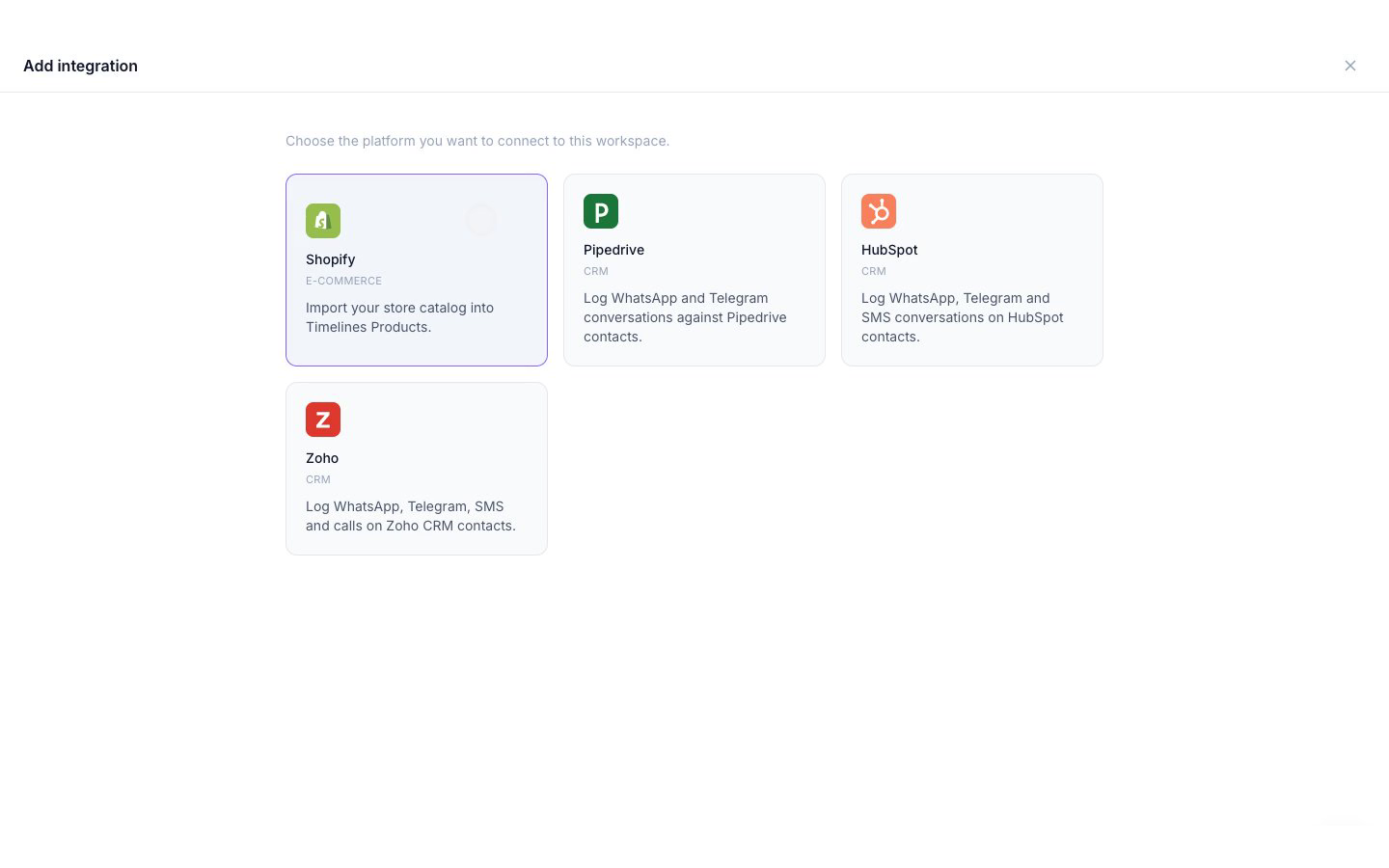
- Klik på Tilføj integration og vælg HubSpot.
- Klik på Fortsæt til HubSpot.
- Log ind på HubSpot, hvis du bliver bedt om det, og vælg den HubSpot-konto, du vil forbinde.
- Gennemgå tilladelserne på HubSpot-skærmen og godkend dem. De er forklaret i næste afsnit.
- HubSpot sender dig tilbage til Timelines, hvor HubSpot nu vises som forbundet. Nye samtaler begynder straks at dukke op på dine kontakter.
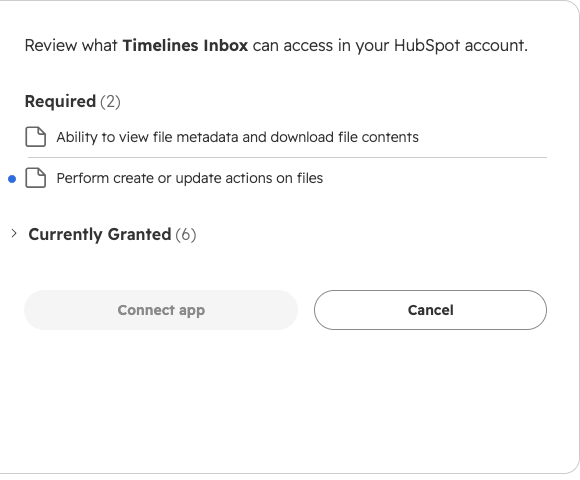
Tilladelser og hvorfor de er nødvendige
Timelines beder kun om det, integrationen bruger. Den beder ikke om virksomheder, aftaler, billetter eller markedsføringsdata.
| Tilladelse | Hvorfor Timelines har brug for det |
|---|---|
| Kontakter: læs og skriv | Find kontakten, hvis telefonnummer matcher en chat, opret en kontakt for et nyt nummer, når du tillader det, og log beskeder, noter og opkald på den kontakt. |
| Kontakt skema: læs og skriv | Opret de brugerdefinerede egenskaber, som Timelines er afhængig af: “Timelines telefon (E.164)” på kontakter, så et nummer aldrig tilføjes to gange, og “Timelines besked-id” på kommunikation, noter og opkald, så den samme besked aldrig logges to gange. |
| Filer: læs og skriv | Upload fotos, dokumenter og talebeskeder fra dine chats og vedhæft dem til den loggede aktivitet. |
| Ejere: læs | Se hvilke kontakter der har en ejer, så når flere kontakter deler et nummer, vælges den ejede først. |
Vælg hvad der logges
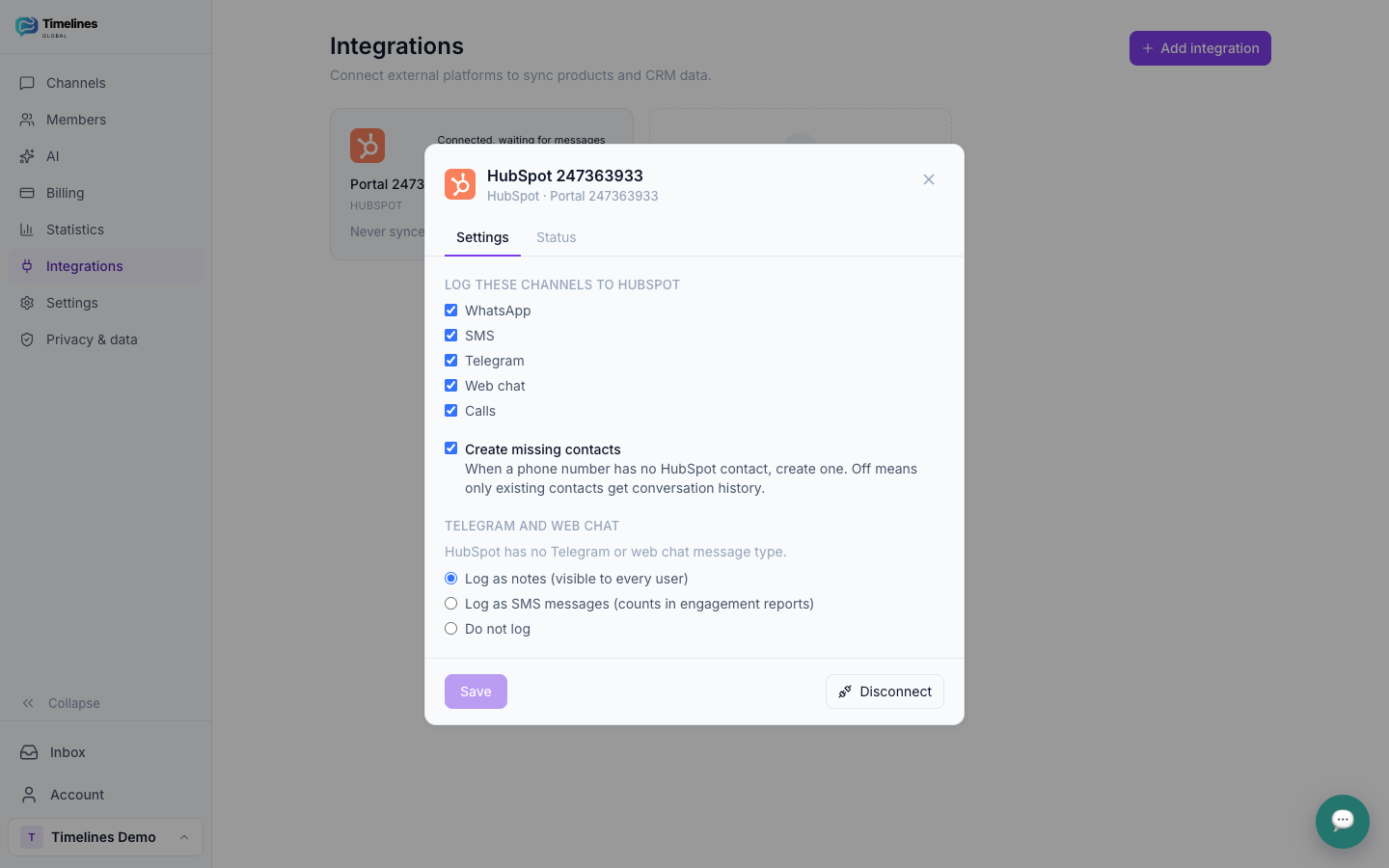
Efter tilslutning, åbn Integrationer → HubSpot i Timelines for at ændre disse indstillinger når som helst. Ændringer gælder for nye beskeder.
- Kanaler til logning. Vælg en af WhatsApp, SMS, Telegram, webchat og opkald. Alle er aktiveret som standard.
- Opret kontakter for nye numre. Aktiveret som standard. Når et telefonnummer ikke har en HubSpot-kontakt, opretter Timelines en. Slå det fra for kun at logge til kontakter, du allerede har.
- Telegram og webchat. HubSpot har ingen Telegram- eller webchat-beskedtype, så disse logges som noter som standard. Du kan logge dem som beskeder i stedet, så de tæller i engagementrapporter, eller slet ikke logge dem.
Brug af integrationen
Der er intet at gøre dagligt. Fortsæt med at arbejde i Timelines-indbakken, og hver besked når HubSpot inden for sekunder:
- WhatsApp- og SMS-beskeder vises på kontakten som Kommunikation.
- Telegram- og webchat-beskeder vises som noter, medmindre du vælger at logge dem som beskeder.
- Opkald vises som Opkald, med retning, status og varighed.
- Vedhæftede filer tilføjes til den aktivitet, de fulgte med.
På en HubSpot-kontakt skjuler fanen Aktiviteter WhatsApp og SMS som standard. Marker dem én gang under Filtrer efter aktivitetstype for at se dem i tidslinjen.
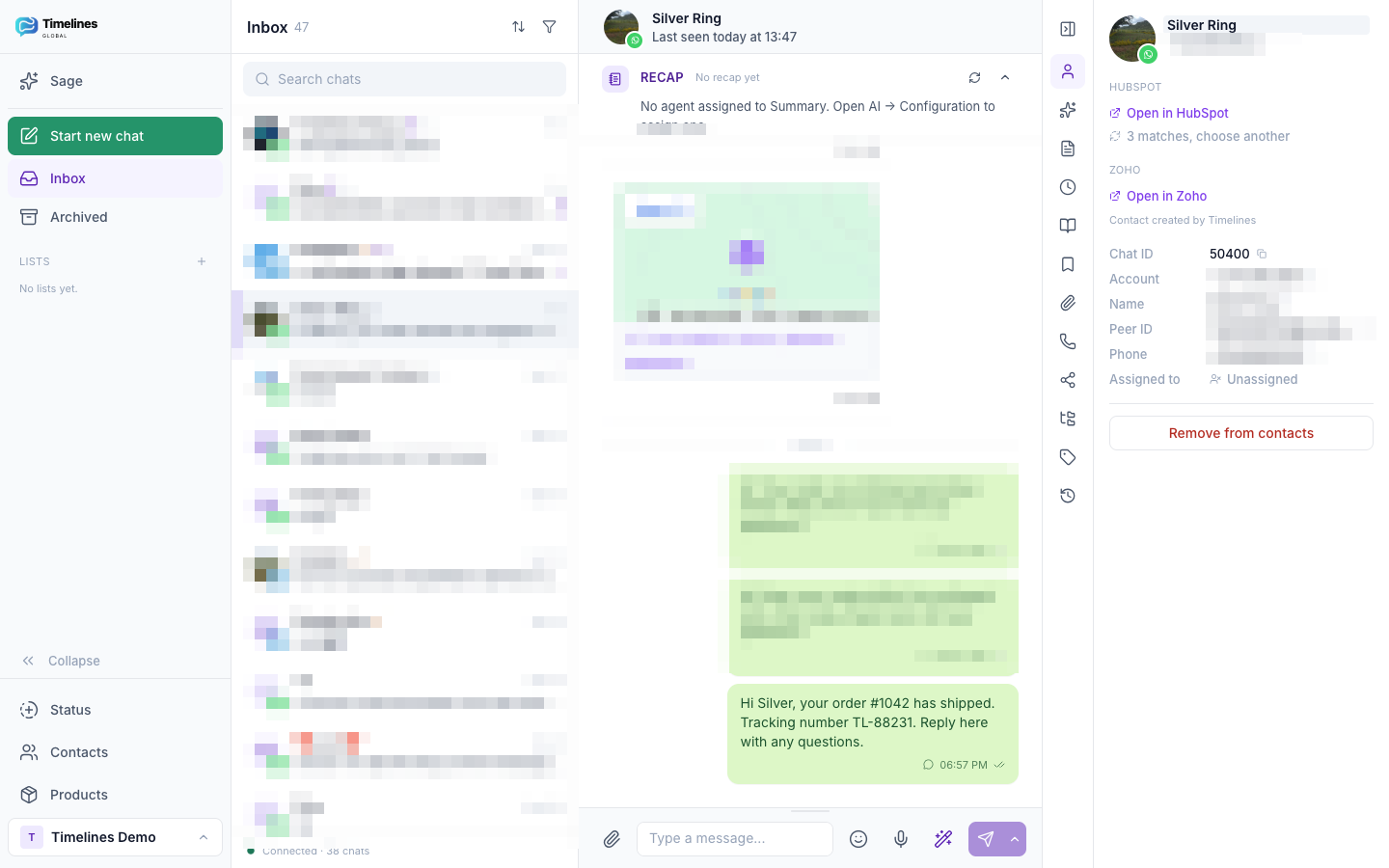
I Timelines-indbakken viser chatpanelet den tilknyttede HubSpot-kontakt med et Åbn i HubSpot link. Kontakter matches efter telefonnummer i ethvert format. Når flere kontakter deler et nummer, logger Timelines til det bedste match (et præcist nummer først, derefter en kontakt med en ejer) og lader dig vælge en anden. Chats uden et telefonnummer, såsom de fleste Telegram-chats, kan knyttes til en kontakt ved at indsætte dens HubSpot-kontakt-ID.
Afbryd fra Timelines
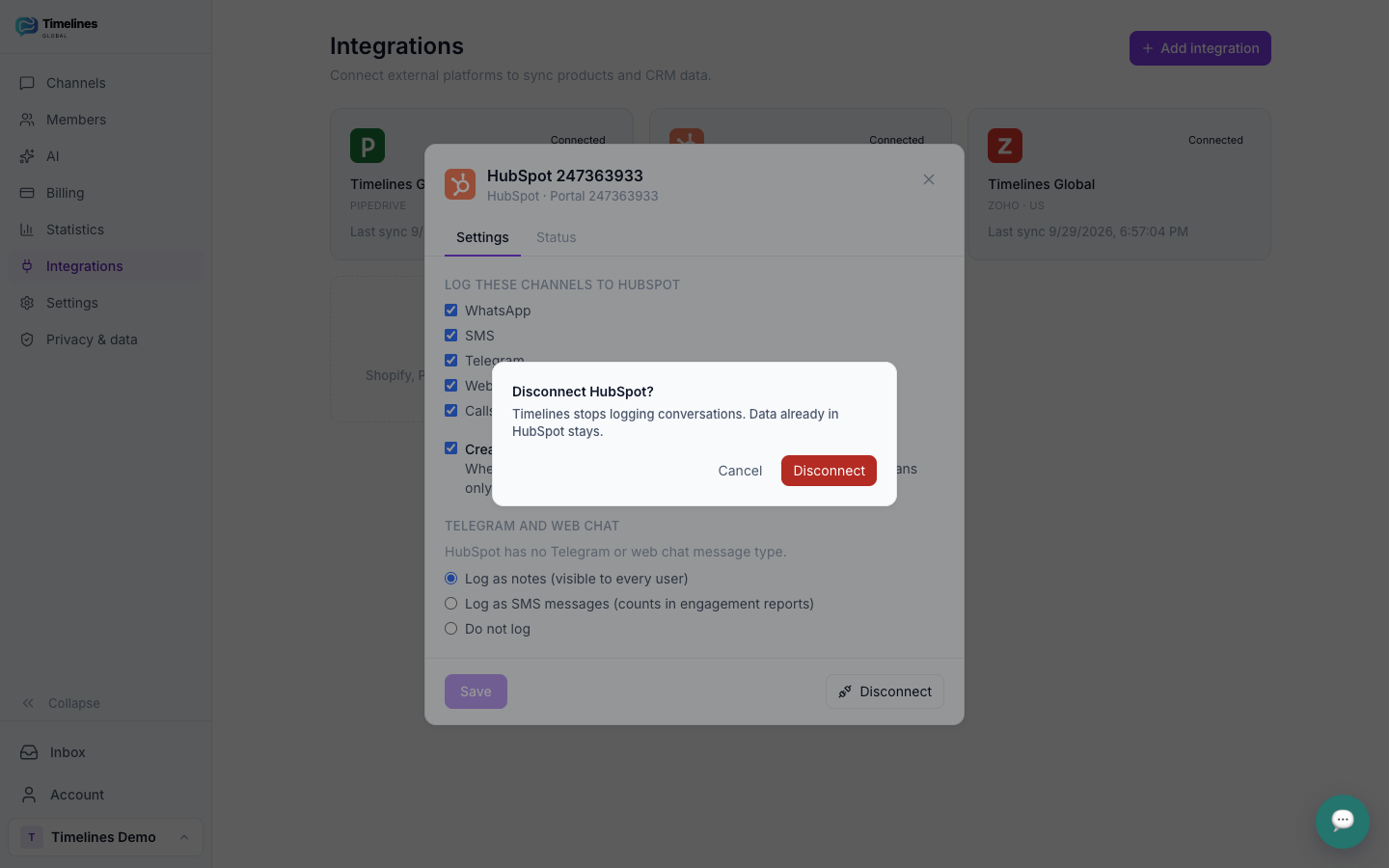
- I Timelines, åbn Integrationer.
- Klik på afbrydelsesikonet på HubSpot-kortet og bekræft.
Timelines stopper straks med at logge og sletter de HubSpot-adgangstokens, det gemte. Du kan tilslutte igen når som helst; dine indstillinger bevares.
Afinstaller fra HubSpot
Du kan også fjerne appen fra HubSpot-siden:
- I HubSpot, åbn Indstillinger → Integrationer → Tilsluttede apps.
- Find Timelines-appen, åbn Handlinger og vælg Afinstaller.
HubSpot tilbagekalder derefter Timelines' adgang. Timelines stopper synkronisering, markerer HubSpot som afbrudt i dit arbejdsområde og sletter de gemte tokens. For at bruge integrationen igen, tilslut den fra Timelines som beskrevet ovenfor.
Hvad der sker med dine data
- Mens tilsluttet, Timelines læser kontakter for at matche telefonnumre og skriver de beskeder, noter, opkald, filer og kontakter, der er beskrevet ovenfor. Adgangstokens gemmes krypteret.
- Efter du afbryder eller afinstallerer, intet allerede logget slettes fra HubSpot. Beskeder, noter, opkald, filer, de kontakter Timelines oprettede og Timelines tilpassede egenskaber forbliver i din HubSpot-konto, og du kan fjerne dem der, hvis du ønsker det.
- I Timelines, de lagrede HubSpot tokens slettes. Dine samtaler forbliver i din Timelines indbakke som før.
Læs mere i vores privatlivspolitik og på sikkerhed og overholdelse siden. Spørgsmål? Kontakt os.
$4.99 per integration per måned
Forbindelse til HubSpot bruger én Integration, $4,99 pr. måned for hele dit team, faktureret månedligt af Timelines på sin egen Integration-abonnement. Din 7-dages gratis prøveperiode inkluderer én Integration. Kanaler faktureres separat til $9,99 pr. kanalplads pr. måned, med ubegrænsede teammedlemmer og alle AI-funktioner inkluderet.
Se priser →Relateret: WhatsApp CRM og Telegram CRM.
HubSpot integration FAQ
Hvilken HubSpot-plan har jeg brug for?
Enhver plan, inklusive den gratis HubSpot CRM. Beskeder, noter og opkald er standard HubSpot-aktiviteter.
Hvordan matches kontakter?
Efter telefonnummer, på tværs af HubSpots telefon-, mobiltelefon- og WhatsApp-nummerfelter, i ethvert format. Hvis flere kontakter deler et nummer, viser indbakken matchene, så dit team kan vælge.
Importer den gamle samtaler?
Logning starter fra det øjeblik, du forbinder. Tidligere samtaler forbliver i din Timelines indbakke.
Koster integrationen ekstra?
Ja. Den bruger én Integration, $4.99 per måned for hele dit team, og din 7-dages gratis prøveperiode inkluderer én. Kanaler faktureres separat, som på vores prissiden.
Sæt hver samtale i dit CRM
Forbind WhatsApp, Telegram og SMS til Timelines, link HubSpot på et minut, og lad historikken skrive sig selv. Start gratis denne uge.
Kom gratis i gang