مکالمات WhatsApp، Telegram و پیامک شما، روی تماس HubSpot
صندوق ورودی Timelines خود را به HubSpot متصل کنید و هر پیام، تماس و پیوستی در عرض چند ثانیه روی تماس مطابقت داده شده ثبت میشود. تیم شما کل رابطه را در CRM بدون کپی کردن دستی میبیند.
یکپارچهسازی چه میکند
Timelines تماس HubSpot را که شماره تلفن آن با چت مطابقت دارد پیدا میکند و هر مکالمه را با زمان واقعی وقوع آن ثبت میکند.
پیامها
پیامهای WhatsApp و پیامک به ارتباطات WhatsApp و پیامک HubSpot تبدیل میشوند، در هر دو جهت. پیامهای چت وب و Telegram به عنوان یادداشت ثبت میشوند، یا اگر ترجیح میدهید به عنوان پیام.
تماسها
تماسهای WhatsApp، Telegram و تلفنی به تماسهای HubSpot با جهت، پاسخ داده شده یا از دست رفته بودن تماس و مدت زمان آن تبدیل میشوند.
تماسها و پیوستها
عکسها، اسناد و یادداشتهای صوتی به فعالیت ثبت شده پیوست میشوند. یک شماره تلفن جدید میتواند به طور خودکار یک تماس HubSpot ایجاد کند، یا میتوانید فقط به تماسهایی که قبلاً دارید ثبت کنید.
راهنمای راهاندازی یکپارچهسازی HubSpot
راهنمای گام به گام را ببینید (اتصال، همگامسازی، قطع اتصال، حدود دو دقیقه، با روایت):
این راهنما همه چیز را از نصب یکپارچهسازی تا حذف آن پوشش میدهد:
- قبل از شروع
- نصب و اتصال
- مجوزها و دلیل نیاز به آنها
- انتخاب کنید چه چیزی ثبت شود
- استفاده از یکپارچهسازی
- قطع اتصال از Timelines
- حذف از HubSpot
- چه اتفاقی برای دادههای شما میافتد
قبل از شروع
- یک فضای کاری Timelines. شما باید مالک یا مدیر باشید که میتواند یکپارچهسازیها را مدیریت کند.
- یک حساب HubSpot در هر طرح، از جمله CRM رایگان. کاربر HubSpot که متصل میشود باید اجازه نصب برنامهها را داشته باشد (یک سوپر ادمین یا کاربری با دسترسی به بازار برنامهها).
- حداقل یک کانال متصل در Timelines، مانند یک شماره WhatsApp، یک حساب Telegram یا یک شماره تلفن.
اتصال HubSpot از یک یکپارچهسازی استفاده میکند، ۴.۹۹ دلار در ماه برای کل تیم شما. آزمایش رایگان ۷ روزه شما شامل یک یکپارچهسازی است.
نصب و اتصال
- در Timelines، فضای کاری خود را باز کنید و به یکپارچهسازیها بروید.
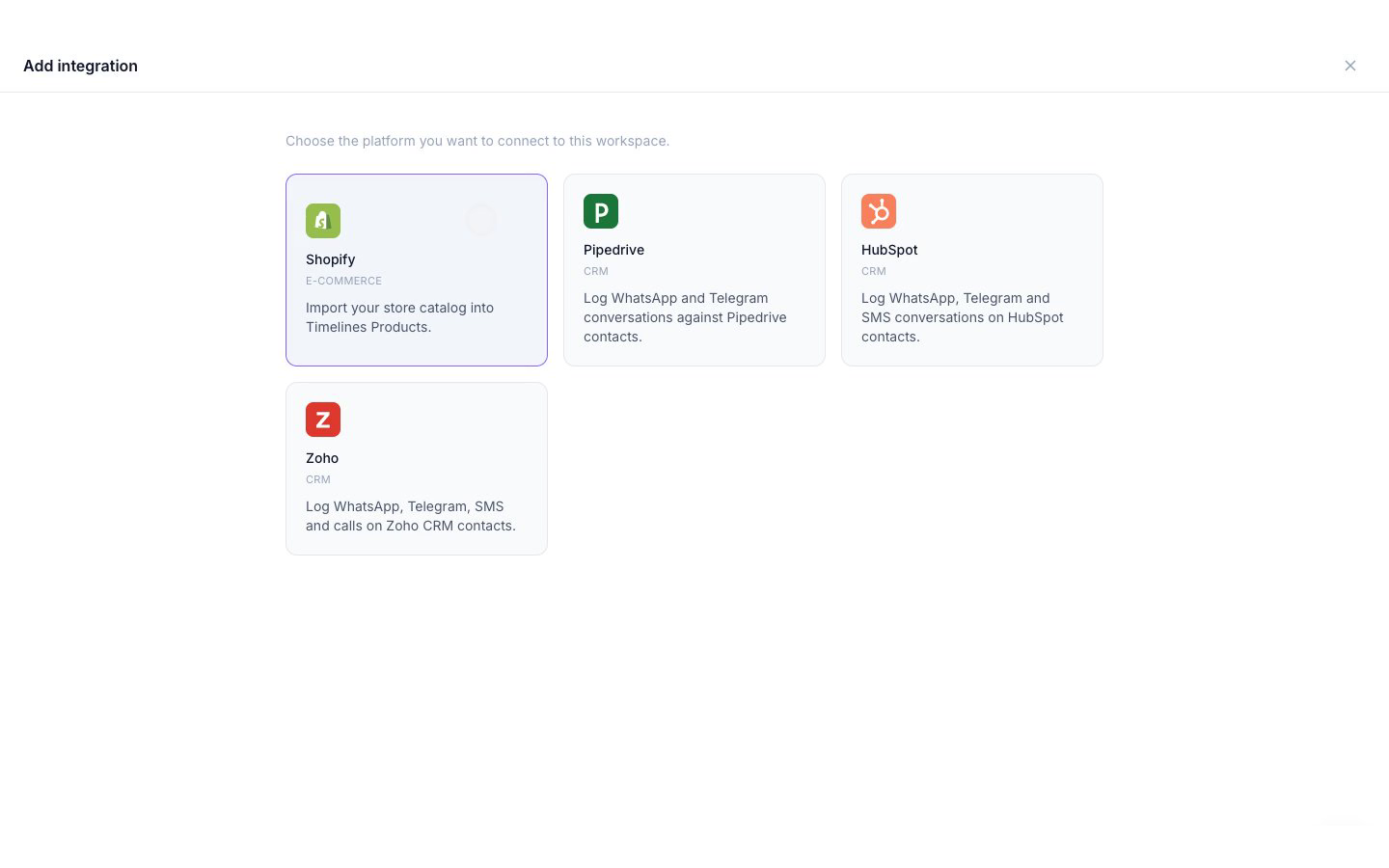
- روی افزودن یکپارچهسازی کلیک کنید و HubSpot را انتخاب کنید.
- روی ادامه به HubSpot کلیک کنید.
- در صورت درخواست، به HubSpot وارد شوید و حساب HubSpot مورد نظر برای اتصال را انتخاب کنید.
- مجوزها را در صفحه HubSpot بررسی کرده و تأیید کنید. آنها در بخش بعدی توضیح داده شدهاند.
- HubSpot شما را به Timelines بازمیگرداند، جایی که اکنون HubSpot به عنوان متصل نشان داده میشود. مکالمات جدید بلافاصله بر روی مخاطبین شما ظاهر میشوند.
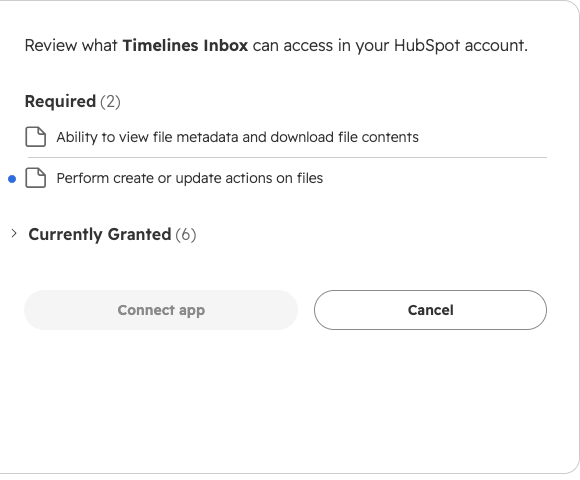
مجوزها و دلیل نیاز به آنها
Timelines فقط برای آنچه که یکپارچهسازی استفاده میکند درخواست میکند. درخواست برای شرکتها، معاملات، بلیطها یا دادههای بازاریابی نمیکند.
| مجوز | چرا Timelines به آن نیاز دارد |
|---|---|
| مخاطبین: خواندن و نوشتن | مخاطبی را پیدا کنید که شماره تلفن آن با یک چت مطابقت دارد، یک مخاطب برای شماره جدید ایجاد کنید وقتی که اجازه میدهید، و پیامها، یادداشتها و تماسها را بر روی آن مخاطب ثبت کنید. |
| طرح مخاطب: خواندن و نوشتن | ویژگیهای سفارشی که Timelines به آنها متکی است را ایجاد کنید: «شماره تلفن Timelines (E.164)» بر روی مخاطبین، تا یک شماره دوبار اضافه نشود، و «شناسه پیام Timelines» بر روی ارتباطات، یادداشتها و تماسها، تا یک پیام دوبار ثبت نشود. |
| فایلها: خواندن و نوشتن | عکسها، اسناد و یادداشتهای صوتی را از چتهای خود بارگذاری کرده و به فعالیت ثبت شده پیوست کنید. |
| مالکین: خواندن | ببینید کدام مخاطبین مالک دارند، تا وقتی چندین مخاطب یک شماره را به اشتراک میگذارند، مالک اول انتخاب شود. |
انتخاب کنید چه چیزی ثبت شود
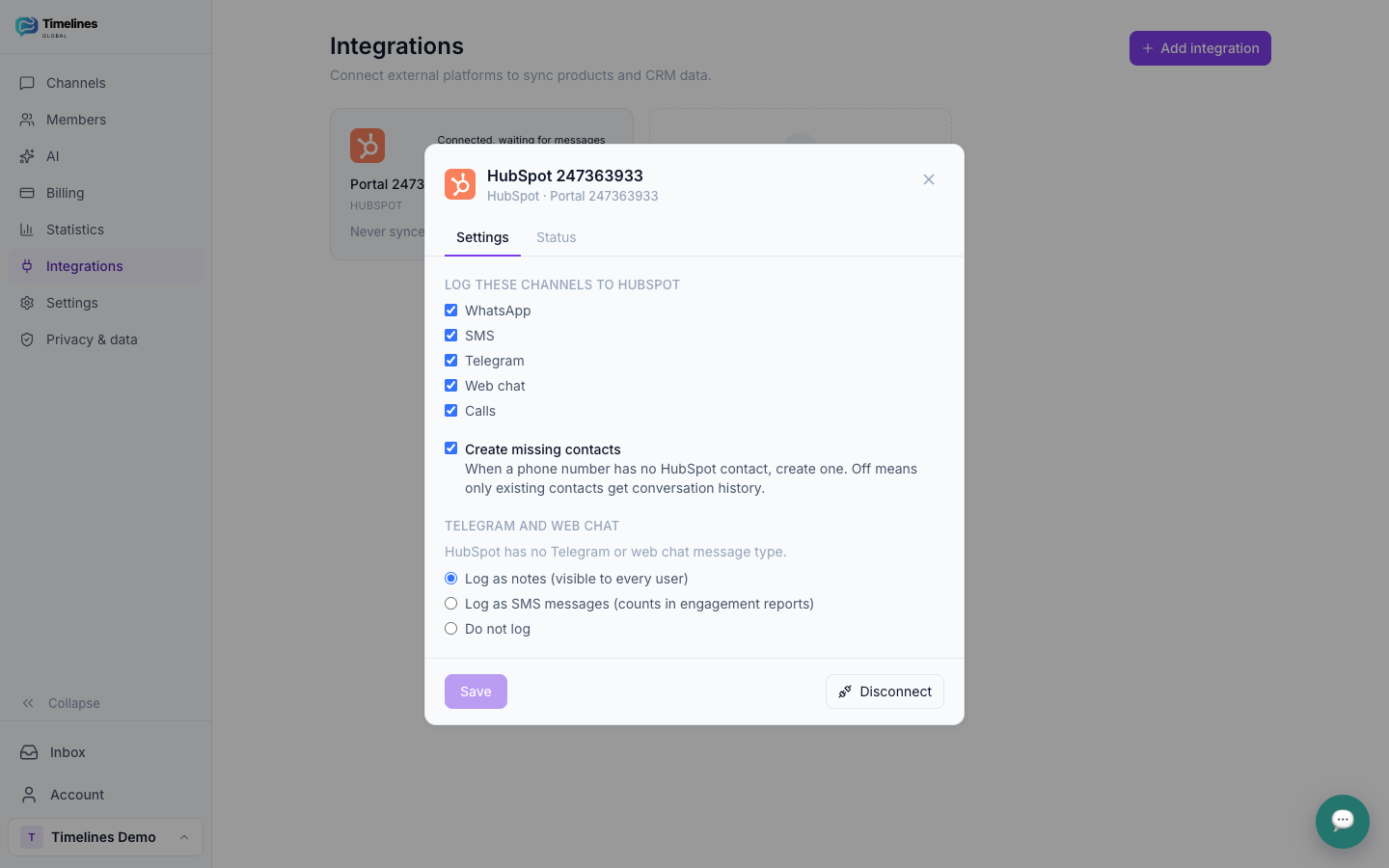
پس از اتصال، یکپارچهسازیها → HubSpot را در Timelines باز کنید تا این تنظیمات را در هر زمان تغییر دهید. تغییرات به پیامهای جدید اعمال میشود.
- کانالهایی برای ثبت. هر یک از WhatsApp، SMS، Telegram، چت وب و تماسها را انتخاب کنید. همه به طور پیشفرض روشن هستند.
- ایجاد مخاطبین برای شمارههای جدید. به طور پیشفرض روشن است. وقتی یک شماره تلفن مخاطب HubSpot ندارد، Timelines یکی ایجاد میکند. آن را خاموش کنید تا فقط به مخاطبینی که قبلاً دارید ثبت کنید.
- تلگرام و چت وب. HubSpot نوع پیام Telegram یا چت وب ندارد، بنابراین اینها به طور پیشفرض به عنوان یادداشت ثبت میشوند. میتوانید آنها را به عنوان پیام ثبت کنید تا در گزارشهای تعامل شمارش شوند، یا اصلاً ثبت نکنید.
استفاده از یکپارچهسازی
هیچ کاری برای انجام روزانه وجود ندارد. به کار در صندوق ورودی Timelines ادامه دهید و هر پیام در عرض چند ثانیه به HubSpot میرسد:
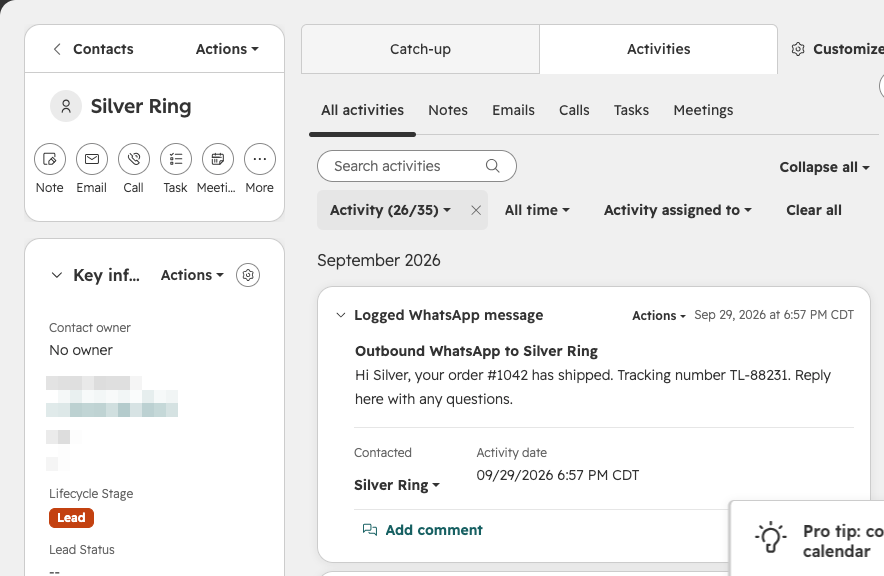
- پیامهای WhatsApp و SMS به عنوان ارتباطات در مخاطب ظاهر میشوند.
- پیامهای تلگرام و چت وب به عنوان یادداشت ظاهر میشوند، مگر اینکه انتخاب کرده باشید آنها را به عنوان پیام ثبت کنید.
- تماسها به عنوان تماسها ظاهر میشوند، با جهت، وضعیت و مدت زمان.
- پیوستها به فعالیتی که با آن آمدهاند اضافه میشوند.
در یک مخاطب HubSpot، تب فعالیتها به طور پیشفرض WhatsApp و SMS را پنهان میکند. آنها را یک بار زیر فیلتر بر اساس نوع فعالیت تیک بزنید تا در تایملاین ببینید.
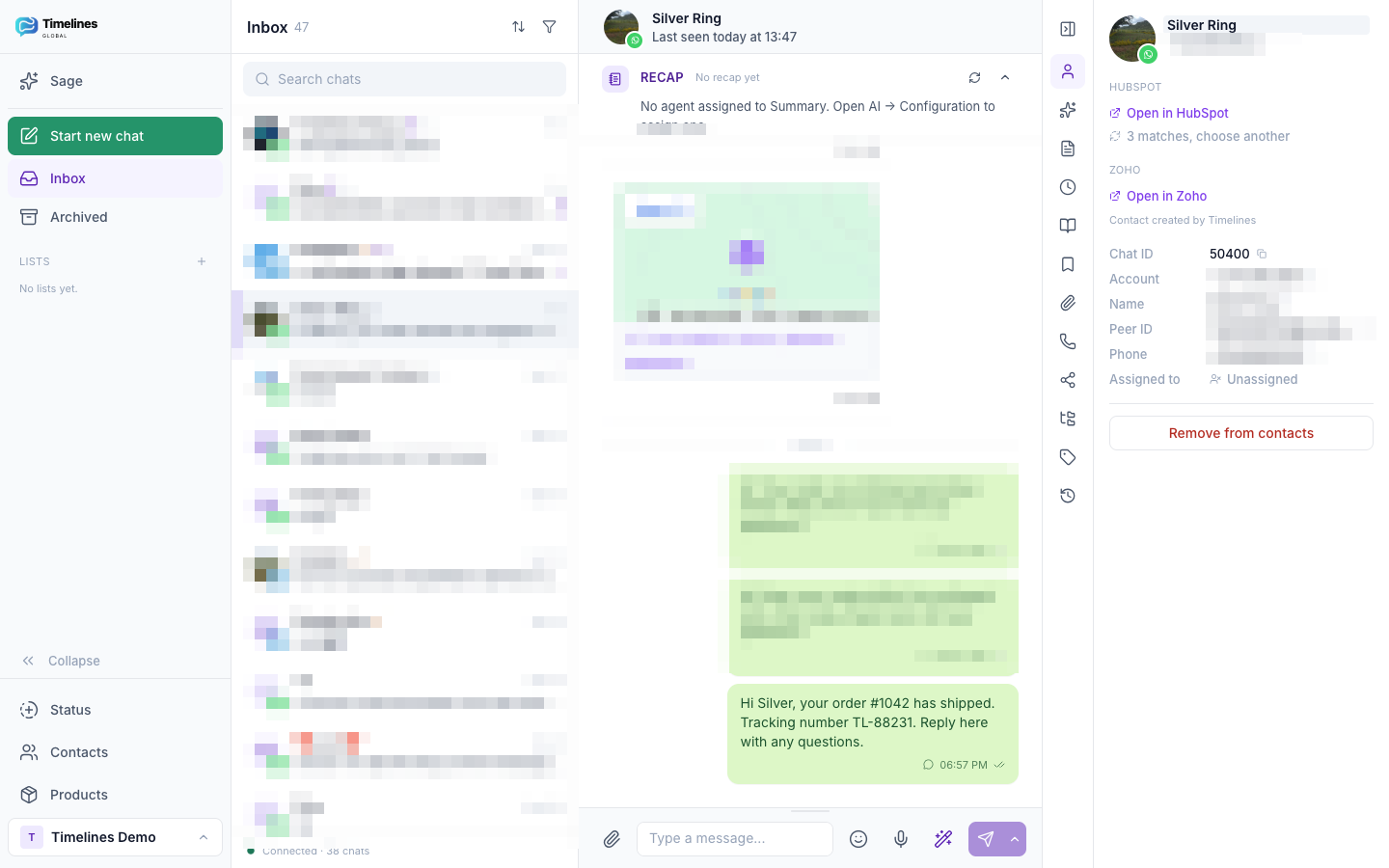
در صندوق ورودی Timelines، پانل چت مخاطب HubSpot مرتبط را با یک لینک باز کردن در HubSpot نشان میدهد. مخاطبین بر اساس شماره تلفن در هر فرمتی مطابقت داده میشوند. وقتی چندین مخاطب یک شماره را به اشتراک میگذارند، Timelines به بهترین تطابق (ابتدا یک شماره دقیق، سپس یک مخاطب با مالک) ثبت میکند و به شما اجازه میدهد یکی دیگر را انتخاب کنید. چتهایی بدون شماره تلفن، مانند اکثر چتهای تلگرام، میتوانند با چسباندن شناسه مخاطب HubSpot آن به یک مخاطب مرتبط شوند.
قطع اتصال از Timelines
- در Timelines، یکپارچهسازیها را باز کنید.
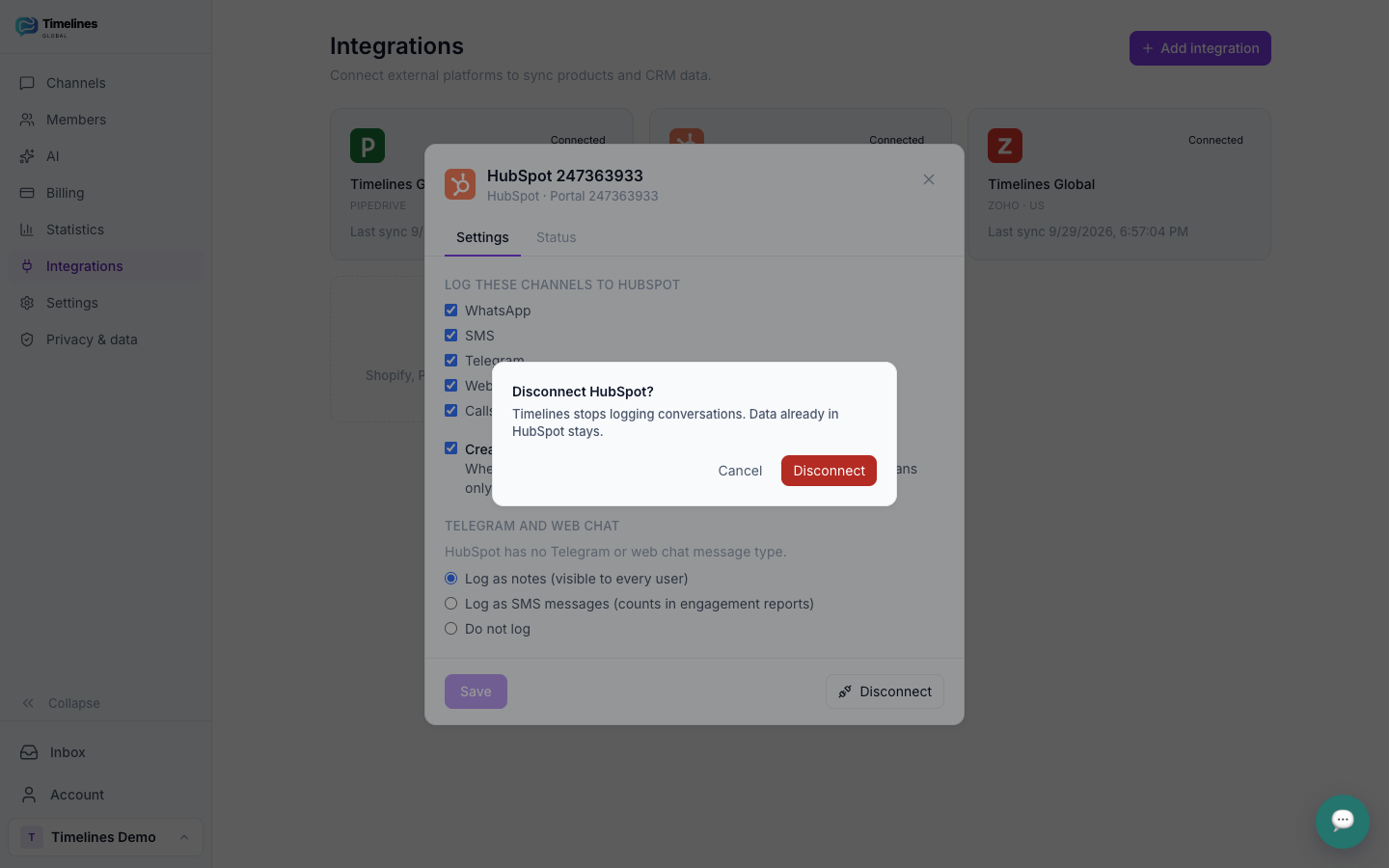
- روی آیکون قطع اتصال در کارت HubSpot کلیک کنید و تأیید کنید.
Timelines بلافاصله ثبت را متوقف میکند و توکنهای دسترسی HubSpot ذخیره شده را حذف میکند. شما میتوانید در هر زمان دوباره اتصال برقرار کنید؛ تنظیمات شما حفظ میشود.
حذف از HubSpot
شما همچنین میتوانید برنامه را از سمت HubSpot حذف کنید:
- در HubSpot، تنظیمات → یکپارچهسازیها → برنامههای متصل را باز کنید.
- برنامه Timelines را پیدا کنید، اقدامات را باز کنید و حذف نصب را انتخاب کنید.
سپس HubSpot دسترسی Timelines ر�� لغو میکند. Timelines همگامسازی را متوقف میکند، HubSpot را به عنوان قطع شده در فضای کاری شما علامتگذاری میکند و توکنهای ذخیره شده آن را حذف میکند. برای استفاده مجدد از یکپارچهسازی، آن را از Timelines همانطور که در بالا توضیح داده شد متصل کنید.
چه اتفاقی برای دادههای شما میافتد
- در حالی که متصل است، Timelines مخاطبین را میخواند تا شمارههای تلفن را مطابقت دهد و ارتباطات، یادداشتها، تماسها، فایلها و مخاطبین توصیف شده در بالا را مینویسد. توکنهای دسترسی به صورت رمزگذاری شده ذخیره میشوند.
- پس از قطع اتصال یا حذف نصب، هیچچیز از قبل ثبتشدهای از HubSpot حذف نمیشود. پیامها، یادداشتها، تماسها، فایلها، مخاطبین ایجادشده توسط Timelines و ویژگیهای سفارشی Timelines در حساب HubSpot شما باقی میمانند و در صورت تمایل میتوانید آنها را از آنجا حذف کنید.
- در Timelines، توکنهای ذخیرهشده HubSpot حذف میشوند. مکالمات شما همانند قبل در صندوق ورودی Timelines شما باقی میمانند.
بیشتر بخوانید در سیاست حفظ حریم خصوصی و در صفحه امنیت و تطابق. سوالی دارید؟ با ما تماس بگیرید.
۴.۹۹ دلار به ازای هر یکپارچهسازی در ماه
اتصال HubSpot از یک یکپارچهسازی استفاده میکند، ۴.۹۹ دلار در ماه برای کل تیم شما، که به صورت ماهانه توسط Timelines در اشتراک یکپارچهسازی خود صورتحساب میشود. آزمایش رایگان ۷ روزه شما شامل یک یکپارچهسازی است. کانالها به صورت جداگانه در ۹.۹۹ دلار به ازای هر اسلات کانال در ماه صورتحساب میشوند، با اعضای تیم نامحدود و هر ویژگی AI شامل.
مشاهده قیمتها →مرتبط: WhatsApp CRM و Telegram CRM.
سوالات متداول یکپارچهسازی HubSpot
کدام طرح HubSpot را نیاز دارم؟
هر طرحی، از جمله HubSpot CRM رایگان. پیامها، یادداشتها و تماسها فعالیتهای استاندارد HubSpot هستند.
چگونه مخاطبین تطبیق داده میشوند؟
با شماره تلفن، در سراسر فیلدهای شماره تلفن، تلفن همراه و شماره WhatsApp HubSpot، در هر فرمتی. اگر چندین مخاطب شمارهای را به اشتراک بگذارند، صندوق ورودی تطابقها را نشان میدهد تا تیم شما بتواند انتخاب کند.
آیا مکالمات قدیمی وارد میشود؟
ثبت از لحظه اتصال شما شروع میشود. مکالمات قبلی در صندوق ورودی Timelines شما باقی میمانند.
آیا یکپارچهسازی هزینه اضافی دارد؟
بله. از یک یکپارچهسازی استفاده میکند، ۴.۹۹ دلار در ماه برای کل تیم شما، و آزمایش رایگان ۷ روزه شما شامل یک مورد است. کانالها به صورت جداگانه صورتحساب میشوند، همانطور که در صفحه قیمتگذاری ما.
هر مکالمهای را در CRM خود قرار دهید
WhatsApp، Telegram و SMS را به Timelines متصل کنید، HubSpot را در یک دقیقه لینک کنید و بگذارید تاریخچه خود را بنویسد. این هفته رایگان شروع کنید.
رایگان شروع کنید