Your WhatsApp, Telegram and SMS conversations, in Zoho CRM
Connect your Timelines inbox to Zoho CRM and every message and call is logged on the matching contact or lead. Your team sees the whole conversation in Zoho without copying anything by hand.
What the integration does
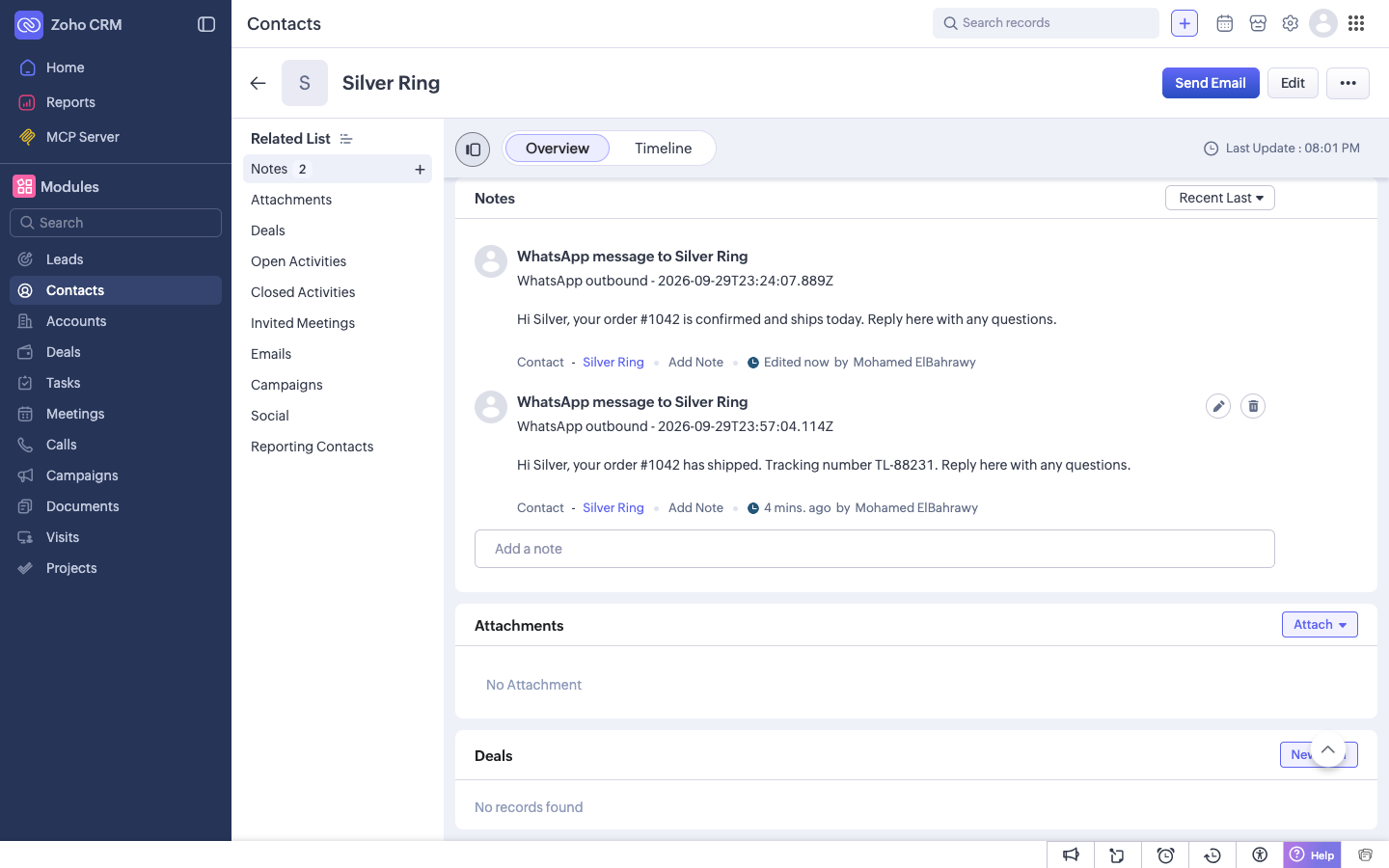
Timelines finds the Zoho CRM record whose phone number matches the chat and logs each message and call on it.
Messages as notes
Each WhatsApp, SMS, Telegram and web chat message becomes a note on the matching contact or lead, with its channel, direction and time.
Calls in the Calls module
WhatsApp, Telegram and phone calls are logged in Zoho's Calls module with the direction, whether the call was answered or missed, and its duration.
Your data center, detected
Your Zoho data center is detected automatically: US, EU, India, Australia, Japan, UK, Canada or Saudi Arabia. There is nothing to choose.
Zoho CRM integration setup guide
Watch the walkthrough (connect, sync, disconnect, about two minutes, with narration):
This guide covers everything from connecting Zoho CRM to removing it:
- Before you start
- Connect Zoho CRM
- Permissions and why they are needed
- Choose what gets logged
- Using the integration
- Zoho CRM Free edition
- Disconnect
- What happens to your data
Before you start
- A Timelines workspace. You need to be an owner or admin who can manage integrations.
- A Zoho CRM organization on any edition, including Free, hosted in the US, EU, India, Australia, Japan, UK, Canada or Saudi Arabia data center.
- At least one connected channel in Timelines, such as a WhatsApp number, a Telegram account or a phone number.
The Zoho CRM integration is included with Timelines at no extra cost, and it is available during the 7-day free trial.
Connect Zoho CRM
- In Timelines, open your workspace and go to Integrations.
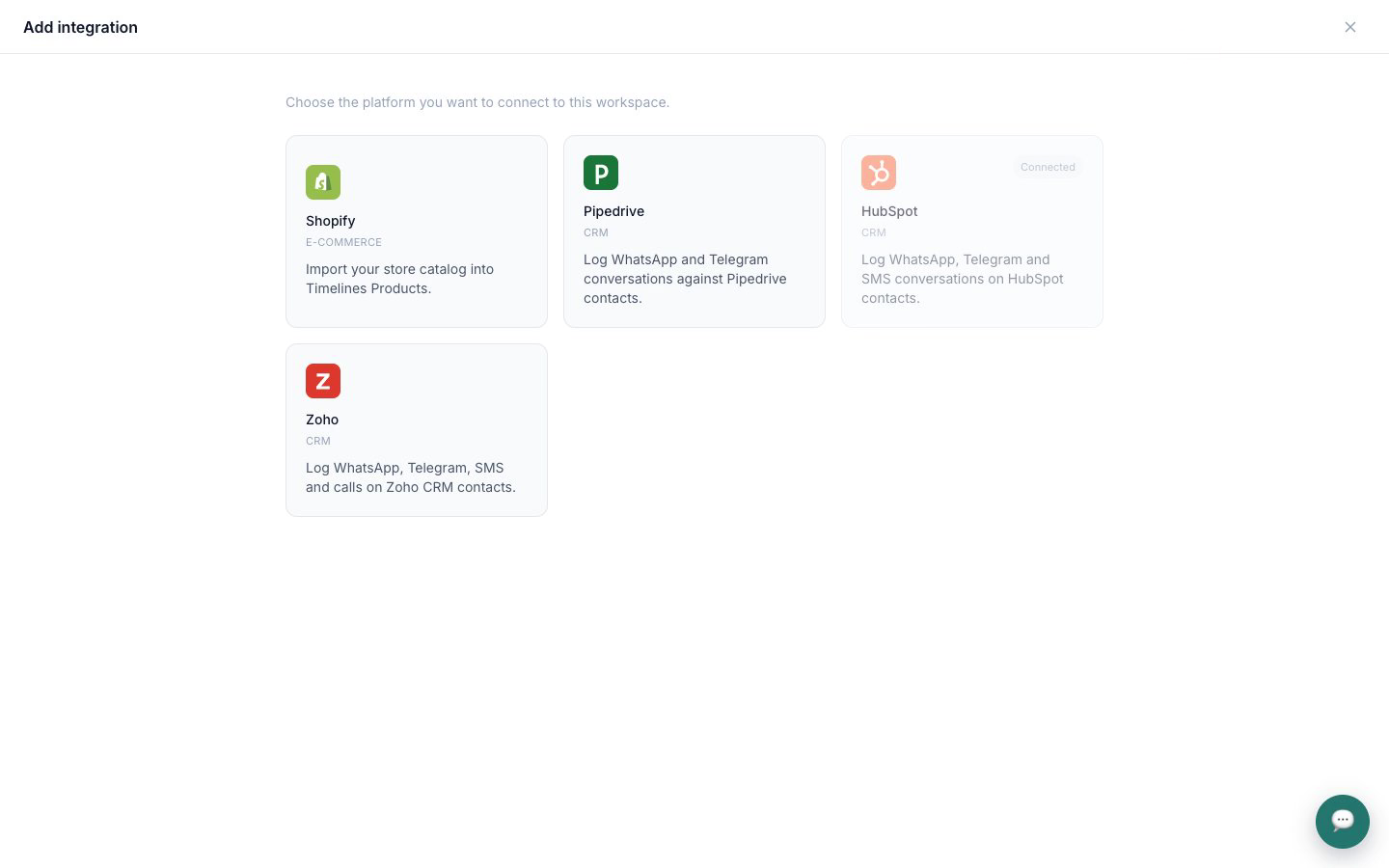
- Click Add integration and choose Zoho CRM.
- Click Continue to Zoho.
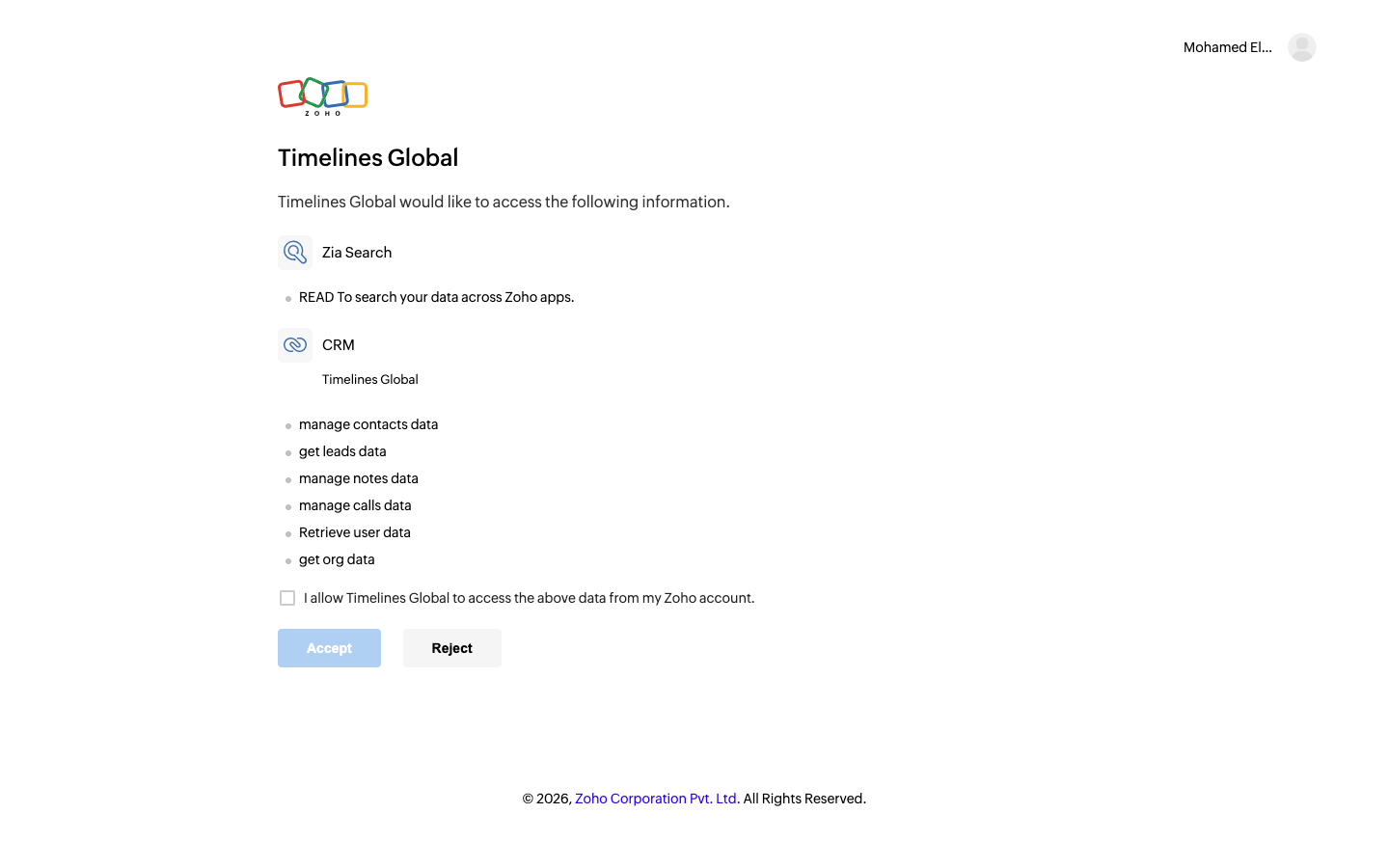
- Sign in to Zoho if asked, review the permissions and click Accept to approve access for your organization.
- Zoho sends you back to Timelines, where Zoho CRM now shows as connected with your organization's name. New conversations start appearing in Zoho right away.
Timelines works out which Zoho data center your organization is in (US, EU, India, Australia, Japan, UK, Canada or Saudi Arabia) and talks only to that data center.
Permissions and why they are needed
Timelines asks only for what the integration uses. It does not ask for deals, accounts, products or any other module.
| Permission | Why Timelines needs it |
|---|---|
| Contacts: all | Find the contact whose phone number matches a chat, and create a contact for a new number when you allow it. |
| Leads: read | Look for a lead with the chat's number when no contact matches. Leads are only matched, never created or changed. |
| Notes: all | Add a note for each message on the matching contact or lead, and check existing notes so a message is never logged twice. |
| Calls: all | Log WhatsApp, Telegram and phone calls in the Calls module. |
| Users: read | Identify the Zoho user who connected the integration. |
| Organization: read | Show your organization's name in Timelines and detect the Free edition, so Timelines can respect its daily API limit. |
| Search: read | Search contacts and leads by phone number. |
Choose what gets logged
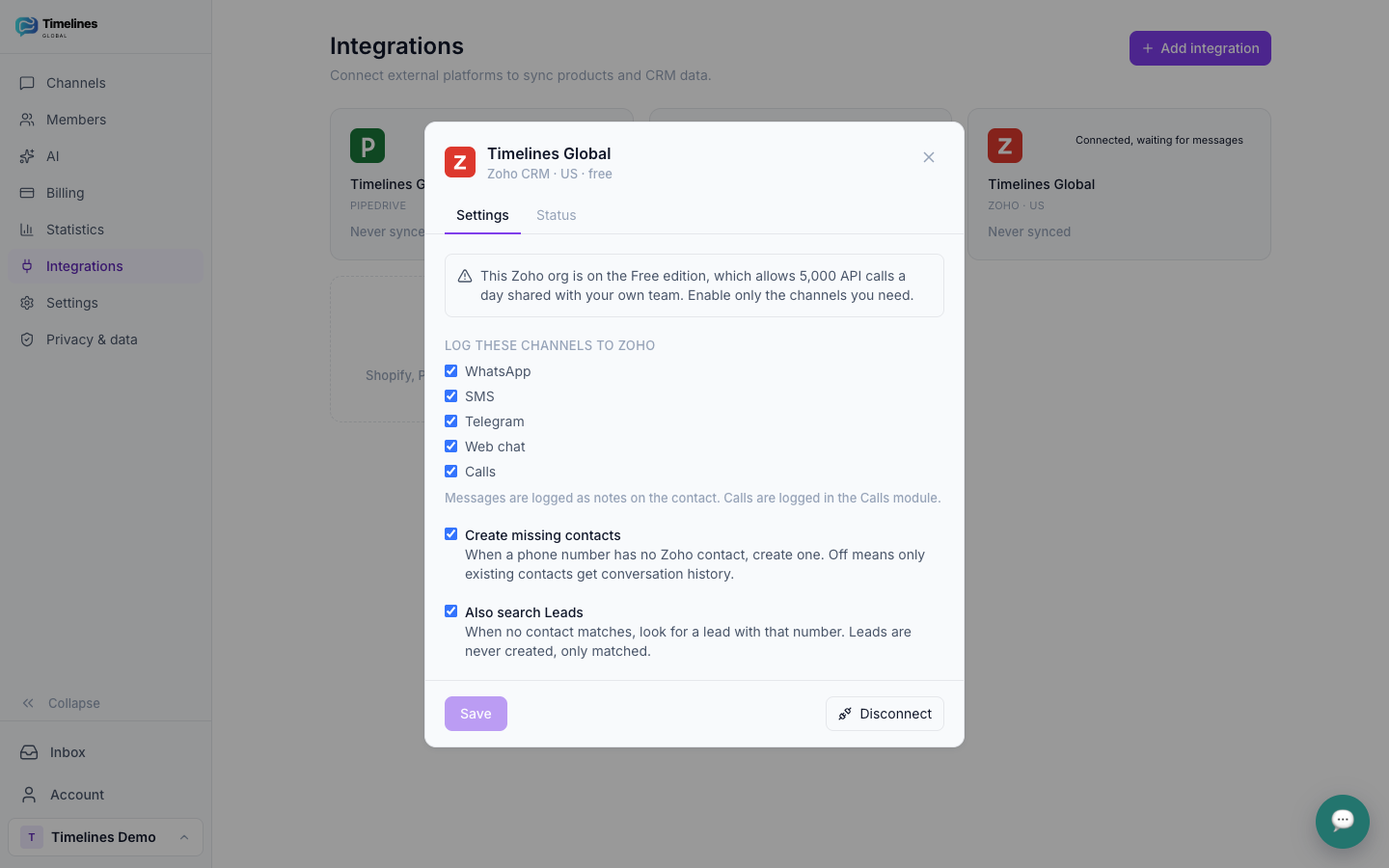
After connecting, open Integrations → Zoho CRM in Timelines to change these settings at any time. Changes apply to new messages.
- Channels to log. Choose any of WhatsApp, SMS, Telegram, web chat and calls. All are on by default.
- Create contacts for new numbers. On by default. When a phone number matches no contact (or lead), Timelines creates a contact. Turn it off to log only to records you already have.
- Also search Leads. On by default. When no contact matches, Timelines looks for a lead with that number and logs there. Leads are matched, never created.
Using the integration
There is nothing to do day to day. Keep working in the Timelines inbox and each message reaches Zoho CRM shortly after it is sent or received:
- Each message is a note on the matching contact or lead, showing the channel, who wrote it and when.
- Each call is a record in the Calls module, linked to the matching record, with direction, status and duration.
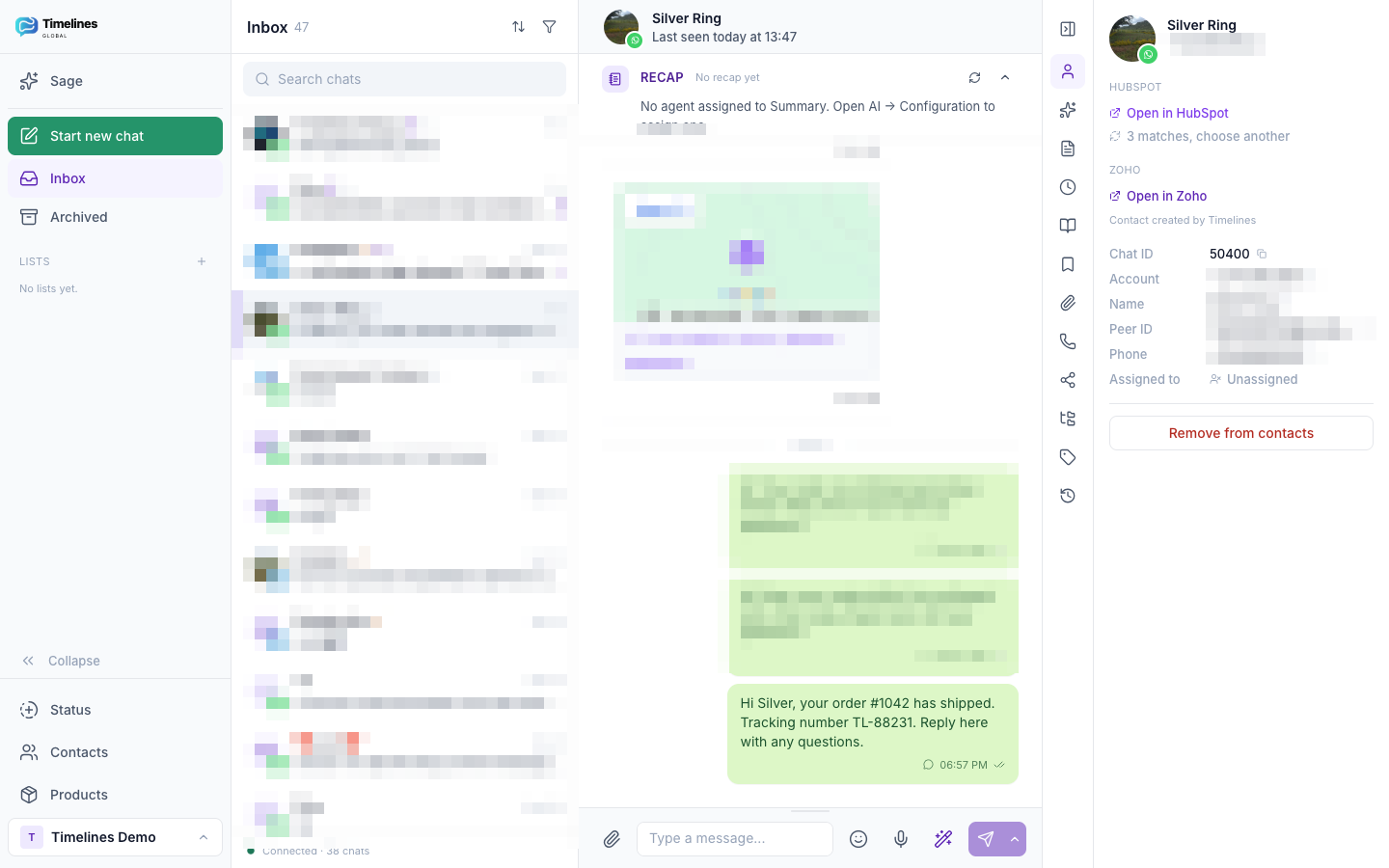
In the Timelines inbox, the chat panel shows the linked Zoho record with an Open in Zoho link, and tells you when the contact was created by Timelines. When several contacts or leads share a number, Timelines does not guess: nothing is logged for that chat until someone picks the right record in the panel. Chats without a phone number, such as most Telegram chats, can be linked to a record by pasting its Zoho record ID.
Zoho CRM Free edition
The integration works on the Free edition. Zoho allows a Free organization 5,000 API calls per day, shared with your team and any other apps you use. Timelines paces its own calls and keeps to part of that allowance, so on a very busy day some messages may reach Zoho later. To stay well within the limit, log only the channels you need. Paid Zoho editions have a much higher limit.
Disconnect
- In Timelines, open Integrations → Zoho CRM.
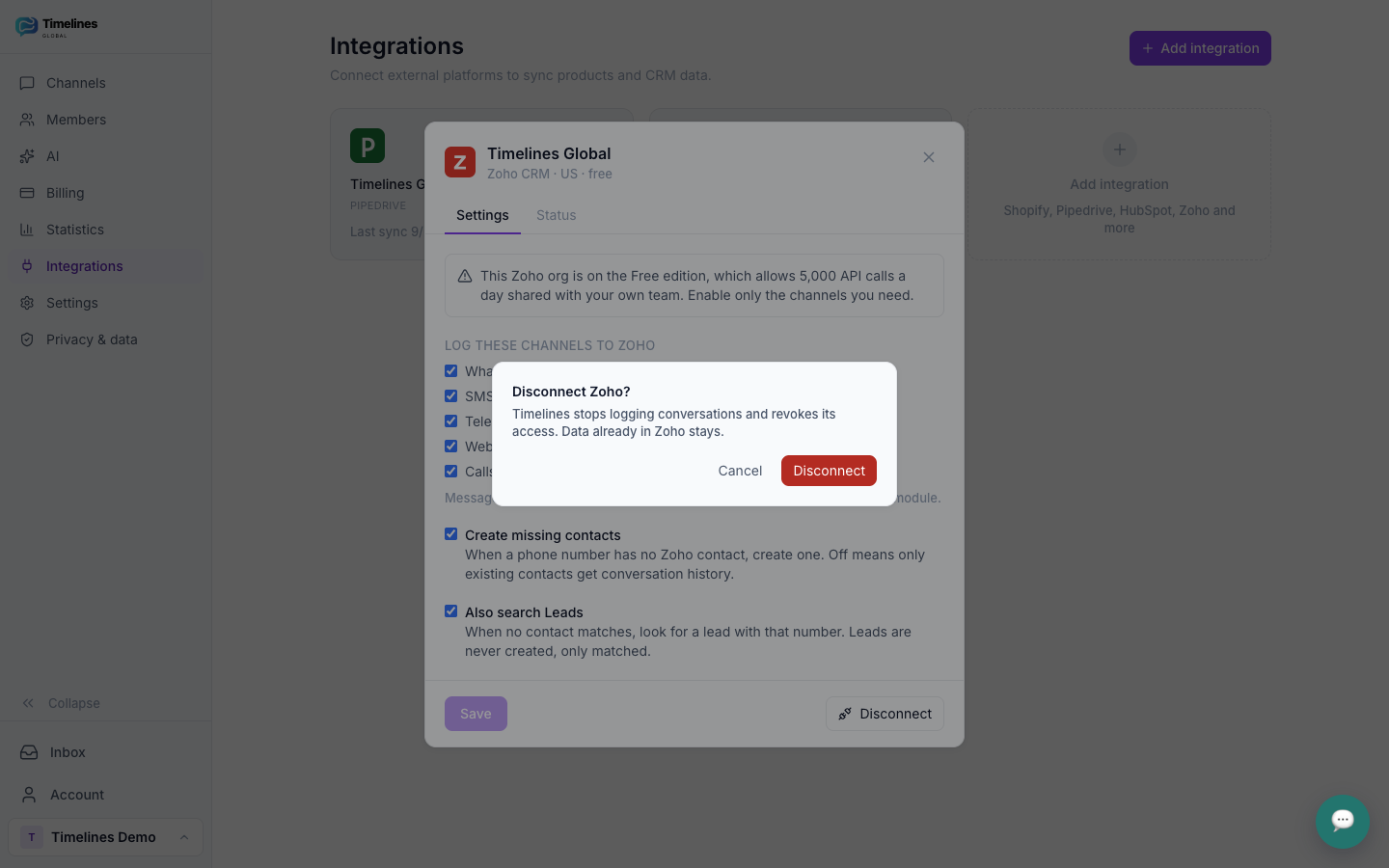
- Click Disconnect and confirm.
Timelines stops logging immediately, revokes its access in Zoho and deletes the Zoho tokens it stored. You can connect again at any time. If you remove Timelines’ access from the Zoho side instead, Timelines stops logging as soon as Zoho refuses its access, and shows Zoho CRM as disconnected.
What happens to your data
- While connected, Timelines reads contacts and leads to match phone numbers and writes the notes, calls and contacts described above. Access tokens are stored encrypted.
- After you disconnect, nothing already logged is deleted from Zoho. The notes, calls and the contacts Timelines created stay in your Zoho CRM organization, and you can remove them there if you want.
- In Timelines, access is revoked in Zoho and the stored tokens are deleted. Your conversations stay in your Timelines inbox as before.
Read more in our privacy policy and on the security and compliance page. Questions? Kontakt os.
Included at no extra cost
The Zoho CRM integration is free with Timelines, including during the 7-day free trial. You only pay for the channels you connect, at $9.99 per connected account per month, with unlimited team members and every AI feature included.
See pricing →Zoho CRM integration FAQ
Which Zoho CRM edition do I need?
Any edition, including Free. On Free, keep the daily API limit in mind (see above).
Does it work outside the US?
Yes. Organizations in the US, EU, India, Australia, Japan, UK, Canada and Saudi Arabia data centers are all supported, and the right one is detected when you connect.
Will it create leads?
No. Leads are only matched. When nothing matches and you allow it, Timelines creates a contact.
Does it import old conversations?
Logging starts from the moment you connect. Earlier conversations stay in your Timelines inbox.
Put every conversation in Zoho CRM
Connect WhatsApp, Telegram and SMS to Timelines, link Zoho CRM in a minute, and let the history write itself. Start free this week.
Kom gratis i gang